MacOS Hardening - 01
You are not wrong to think why a security engineer will even consider buying an Apple product. Rest assured when I actually purchased my MacBook Pro M1 MAX, I was not really aware how bad the security/privacy implications of this choice would be. At that time all I wanted was a cool Apple Product that had awesome speakers and never lagged in any operation.
Things have changed since as I have had the pleasure of reading through OSINT Books
I now understand that it is extremely hard to stay safe and private with an Apple device in and around you. In this Series , it is my attempt to give you a better chance at anonymity and privacy against the elite giant. Needless to say MacOS at its heart is a UNIX-like FreeBSD 3.X & 4.X ripoff..so how hard can it be ?
The Basics
Press CMD+SPACE on your MacBook, and type "terminal" and press ENTER. Then copy-paste the following in it and press ENTER again.
sudo scutil --set ComputerName MacBook && \
sudo scutil --set LocalHostName MacBook && \
sudo /usr/libexec/ApplicationFirewall/socketfilterfw --setglobalstate on && \
sudo /usr/libexec/ApplicationFirewall/socketfilterfw --setloggingmode on && \
sudo /usr/libexec/ApplicationFirewall/socketfilterfw --setstealthmode on && \
sudo pkill -HUP socketfilterfw && \
curl https://raw.githubusercontent.com/StevenBlack/hosts/master/hosts | sudo tee -a /etc/hosts && \
rm -rfv ~/Library/LanguageModeling/* ~/Library/Spelling/* ~/Library/Suggestions/* && \
chmod -R 000 ~/Library/LanguageModeling ~/Library/Spelling ~/Library/Suggestions && \
chflags -R uchg ~/Library/LanguageModeling ~/Library/Spelling ~/Library/Suggestions && \
rm -rfv ~/Library/Assistant/SiriAnalytics.db && \
chmod -R 000 ~/Library/Assistant/SiriAnalytics.db && \
chflags -R uchg ~/Library/Assistant/SiriAnalytics.db
The above does three major things:
- Sets the computer and local hostname to "MacBook" and enables macOS firewall with logging and stealth mode.
- Blocks ads and tracking domains by appending a custom hosts file, and locks down language/suggestion data folders.
- Clears and restricts Siri analytics data, preventing future collection or modification.
We can further lock down the data collection on a MacOS system by running the below commands in the terminal application:
sudo mdutil -i off ~/Documents && sudo mdutil -i off ~/Desktop && sudo mdutil -i off ~/Downloads && sudo mdutil -i off ~/Library/Mail && sudo mdutil -i off ~/Library/Messages && sudo mdutil -i off ~/Library/Calendars && sudo mdutil -i off ~/Library/Contacts && \
sudo mdutil -E ~/Documents && sudo mdutil -E ~/Desktop && sudo mdutil -E ~/Downloads && sudo mdutil -E ~/Library/Mail && sudo mdutil -E ~/Library/Messages && sudo mdutil -E ~/Library/Calendars && sudo mdutil -E ~/Library/Contacts
The above switches off Data collection for most common/High-risk folders.
NOTE: This may break Apple iCloud folder sync for downloads and documents.
Finally run the below to cover the rest of the common hardening steps:
sudo systemsetup -setremoteappleevents off && \
sudo systemsetup -setremotelogin off && \
sudo launchctl unload -w "/System/Library/LaunchDaemons/com.apple.smbd.plist" && \
sudo launchctl unload -w "/System/Library/LaunchDaemons/com.apple.AppleFileServer.plist" && \
sudo defaults write "/Library/Application Support/CrashReporter/DiagnosticMessagesHistory.plist" AutoSubmit -bool false && \
sudo defaults write "/Library/Application Support/CrashReporter/DiagnosticMessagesHistory.plist" AutoSubmitVersion -int 4
The below is a breakdown of what we just ran :
sudo systemsetup -setremoteappleevents off— Disables Remote Apple Events to prevent remote AppleScript execution.sudo systemsetup -setremotelogin off— Disables Remote Login (SSH access).sudo launchctl unload -w "/System/Library/LaunchDaemons/com.apple.smbd.plist"— Stops and disables the SMB service for Windows file sharing.sudo launchctl unload -w "/System/Library/LaunchDaemons/com.apple.AppleFileServer.plist"— Stops and disables the AFP (Apple File Protocol) file-sharing service.sudo defaults write "/Library/Application Support/CrashReporter/DiagnosticMessagesHistory.plist" AutoSubmit -bool false— Disables automatic crash report submission to Apple.sudo defaults write "/Library/Application Support/CrashReporter/DiagnosticMessagesHistory.plist" AutoSubmitVersion -int 4— Sets AutoSubmitVersion to 4 for compatibility with current crash report settings.
Now we can reboot the system and start installing the most important program on any laptop (The Web Browser):
For Browser I recommend Safari and librewolf (I will list must have extensions for both so you can go ahead and buy and install them. (purchase may only be required for Safari)):
Safari Extensions :
Firefox Extensions :
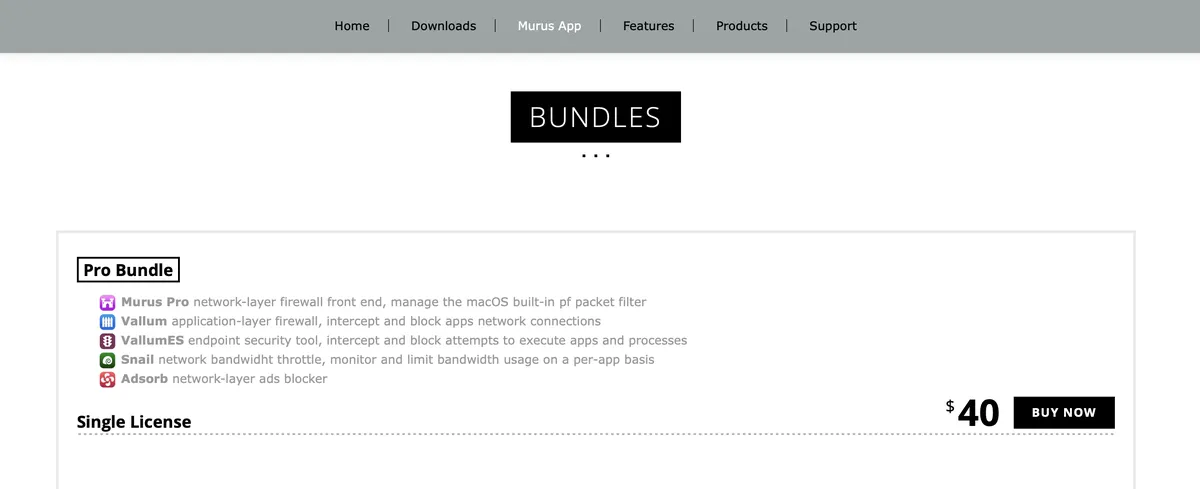
That's it now for everyone, I will be back for the second part where we configure Murus Firewall and related toolings. Until then I would recommend buying the Murus Pro Bundle.